
Getting Started
Market Sync connects your Shopify store to the marketplaces where you sell, so orders, products, and stock stay in sync automatically — no more juggling multiple back-office logins.
Supported marketplaces
- Airgoods
- Allegro
- Amazon
- bol.com
- CDiscount
- Decathlon
- eBay
- Etsy
- Faire
- Kaufland
- Otto
- PodFoods
- Walmart DSV
More marketplaces are being added regularly.
Key features
- Automatically import orders from every connected marketplace, or import them manually whenever you like.
- Fulfillments created in Shopify (with tracking) are sent back to the marketplace automatically.
- Stock updates in Shopify are pushed to your connected marketplaces, keeping inventory accurate everywhere you sell.
1. Open the app
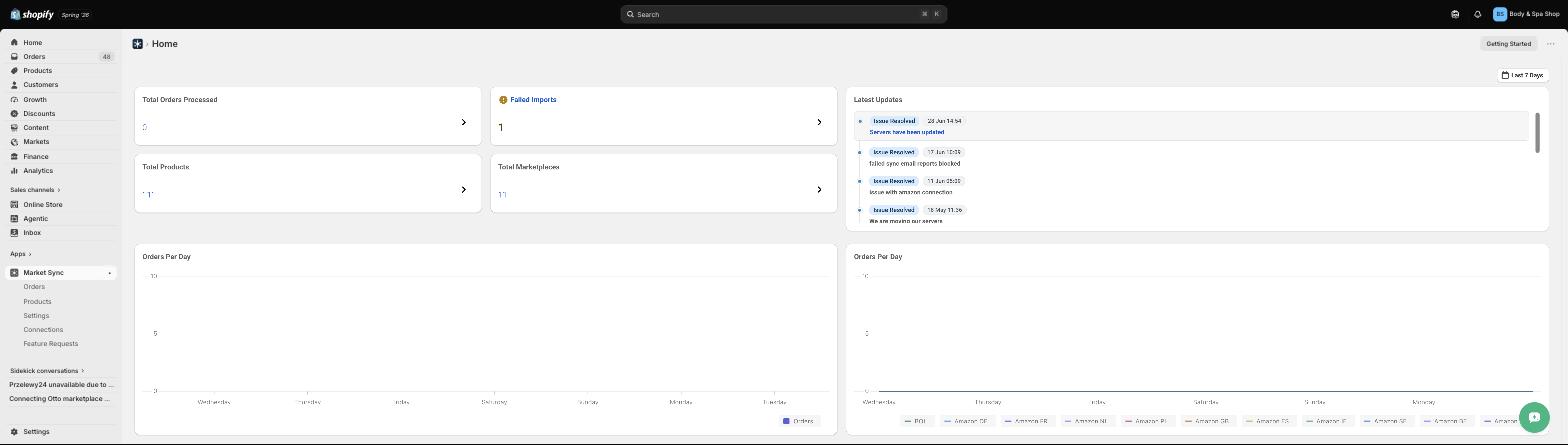
Once Market Sync is installed from the Shopify App Store, you’ll land on the Home dashboard. From here you can see your total orders processed, any failed imports that need attention, your total synced products, and how many marketplaces you have connected.
2. Connect a marketplace
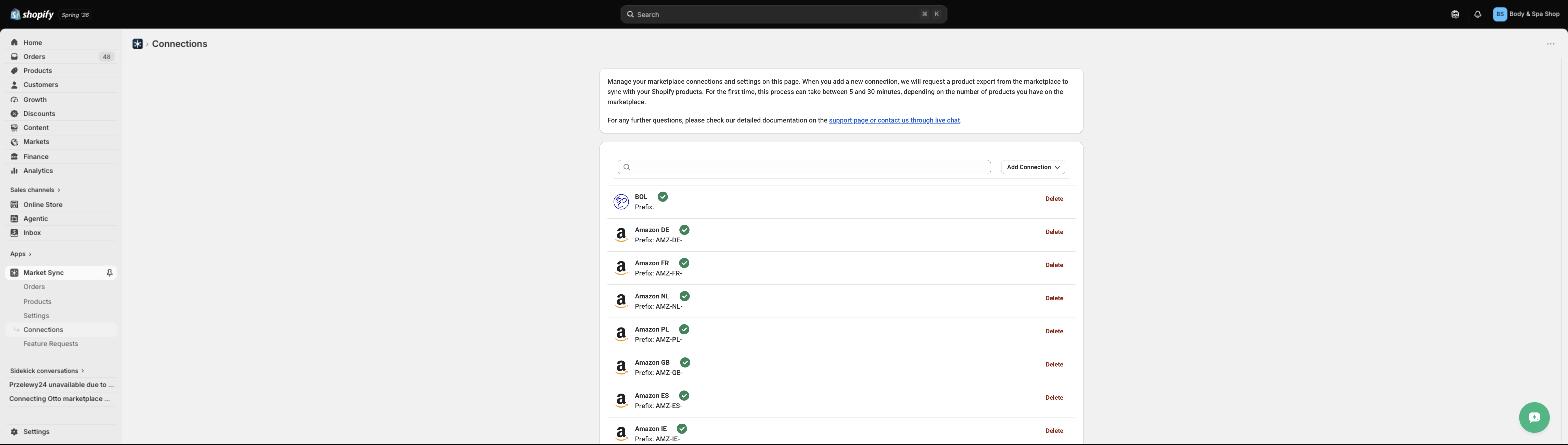
Go to Connections in the app menu and click Add Connection to link a marketplace. You’ll be asked for that marketplace’s credentials, such as an API key/client ID and secret, plus a short prefix and name so you can tell connections apart if you sell on more than one account for the same marketplace.
3. Configure your sync settings
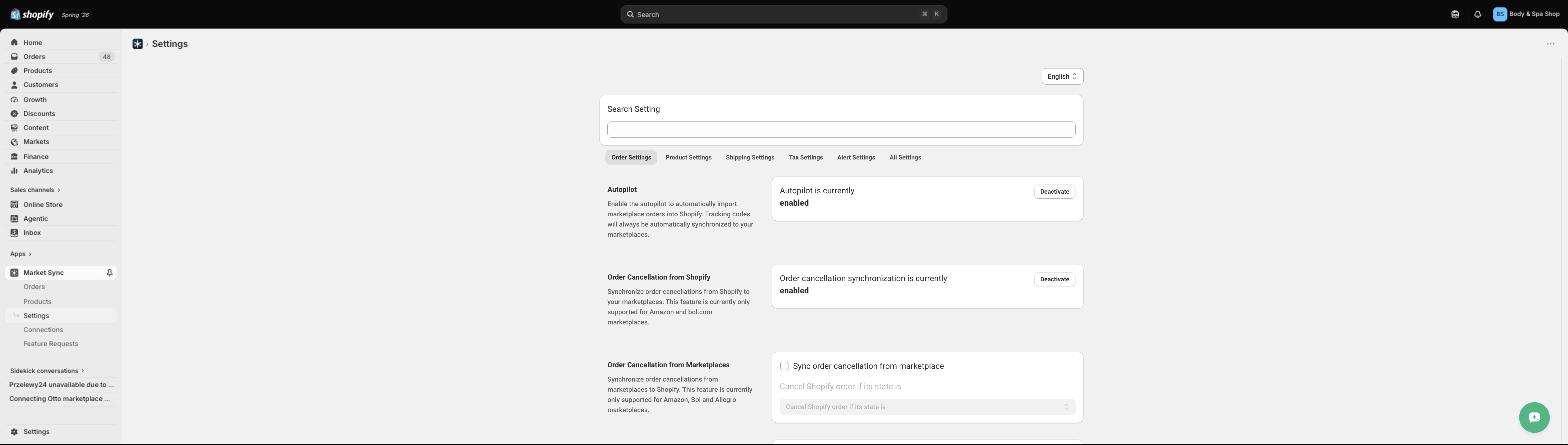
Head to Settings to fine-tune how orders, products, shipping, and tax are handled. Some of the most useful options:
- Autopilot – automatically imports marketplace orders into Shopify instead of importing manually.
- Order cancellation sync – keeps cancellations in sync between Shopify and your marketplaces (currently supported for Amazon, bol.com, and Allegro).
- Product sync – pushes stock and price updates from Shopify to your marketplaces whenever they change.
- Default shipping – ensures orders always include a default shipping method.
- Fulfill orders when sent from marketplace – automatically marks the Shopify order as fulfilled when you create a shipping label on the marketplace side.
4. Check your orders and products
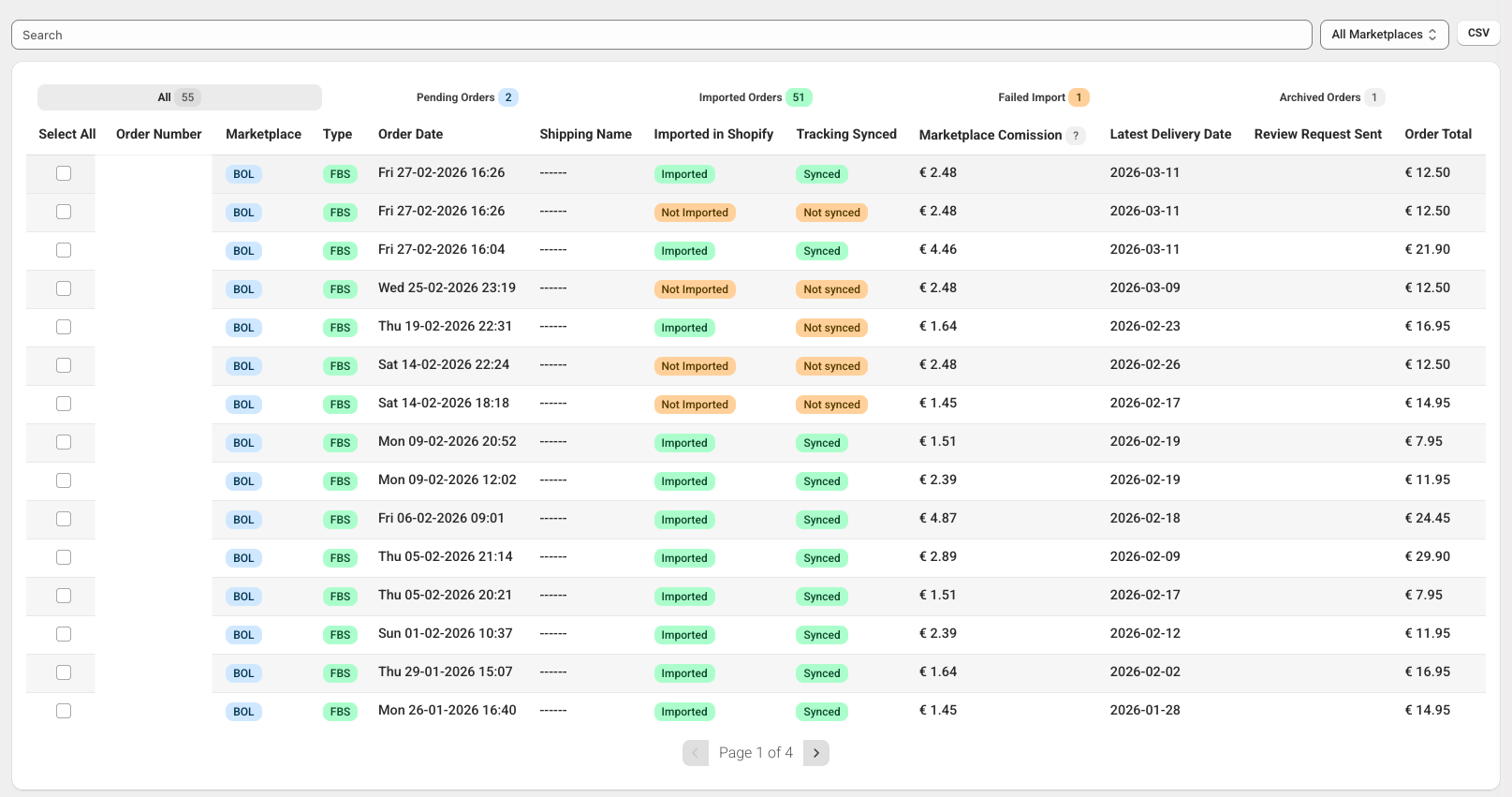
Use the Orders tab to review imported orders, see which ones are still pending, and check tracking sync status. Use the Products tab to see which of your Shopify products are linked to marketplace listings and which still need linking.
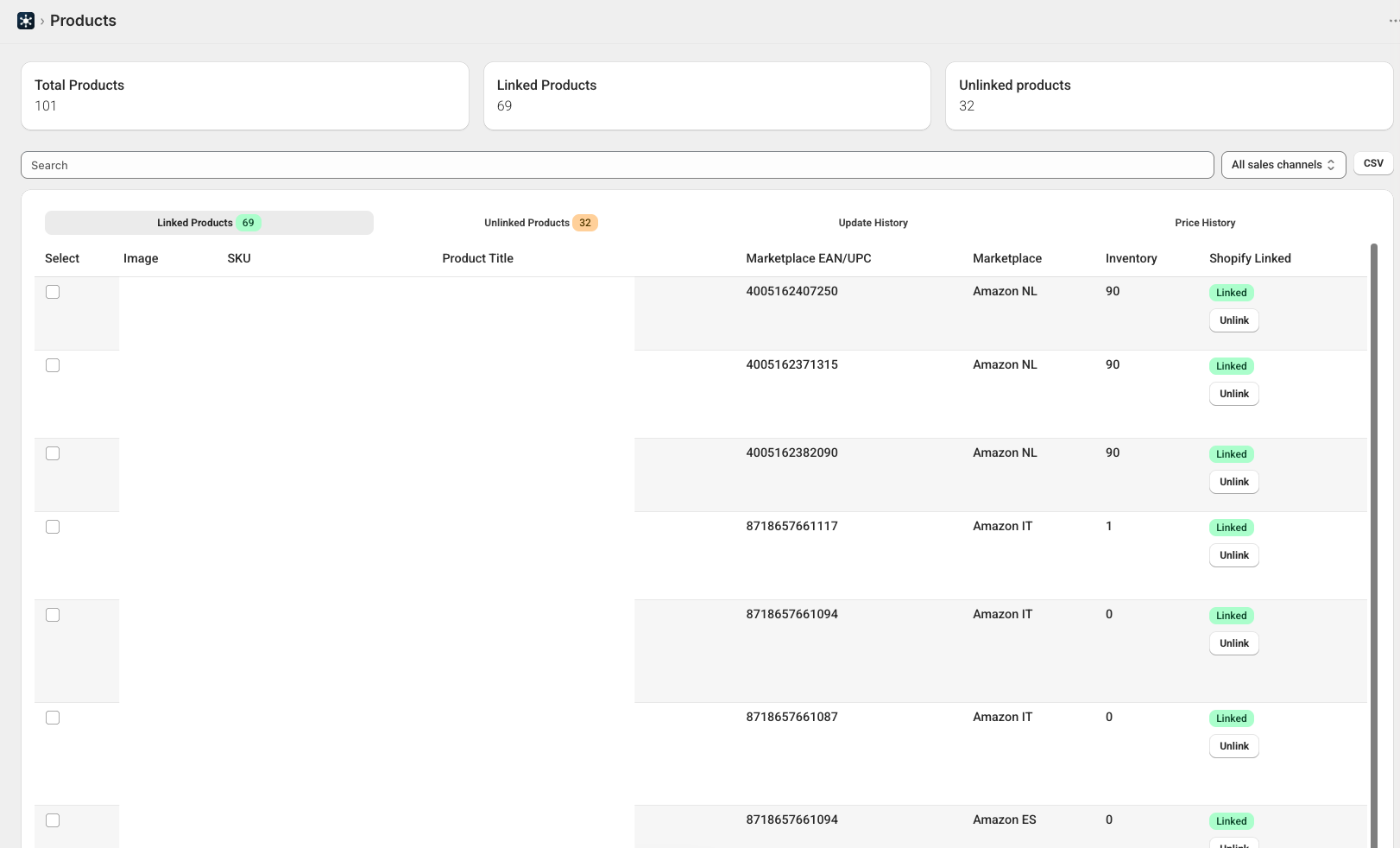
That’s it — once your marketplaces are connected and your sync settings are configured, Market Sync keeps orders, stock, and fulfillments flowing automatically between Shopify and every marketplace you sell on.
Was this article helpful?
Thanks for your feedback!