
Connecting to Kaufland
Updated September 3, 2026
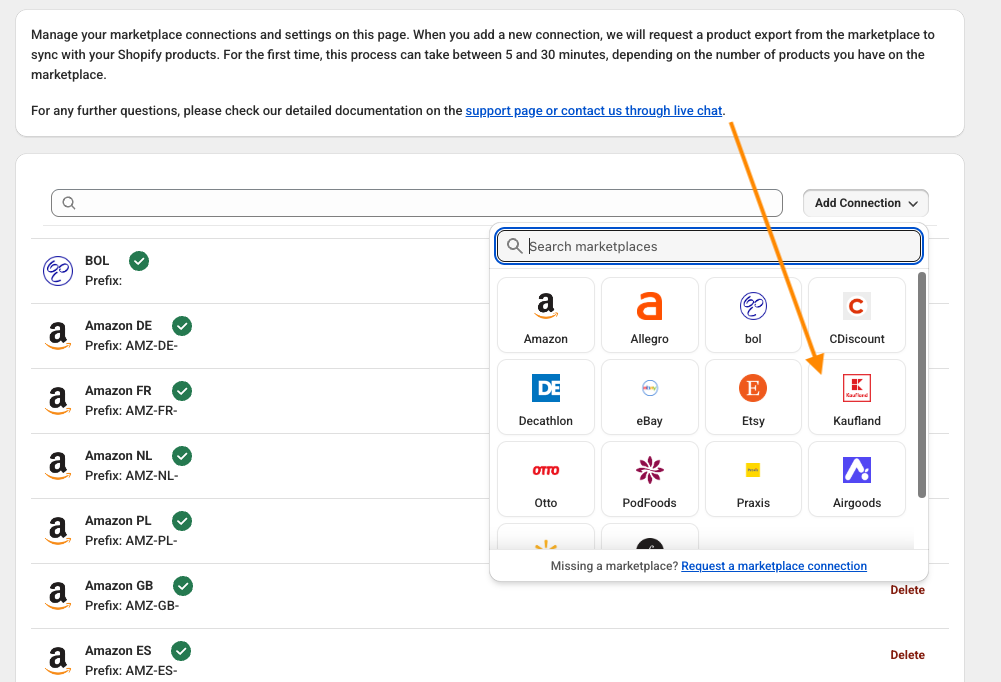
To add a Kaufland connection to the Marketplace Order Connector, go to the settings page in the app and choose “Add Connection”.
Step 1 - Add the connection
Add connection like in this image
Step 2 - Connect to your Kaufland account
When you click kaufland you will see a pop-up window where you can add your account information.

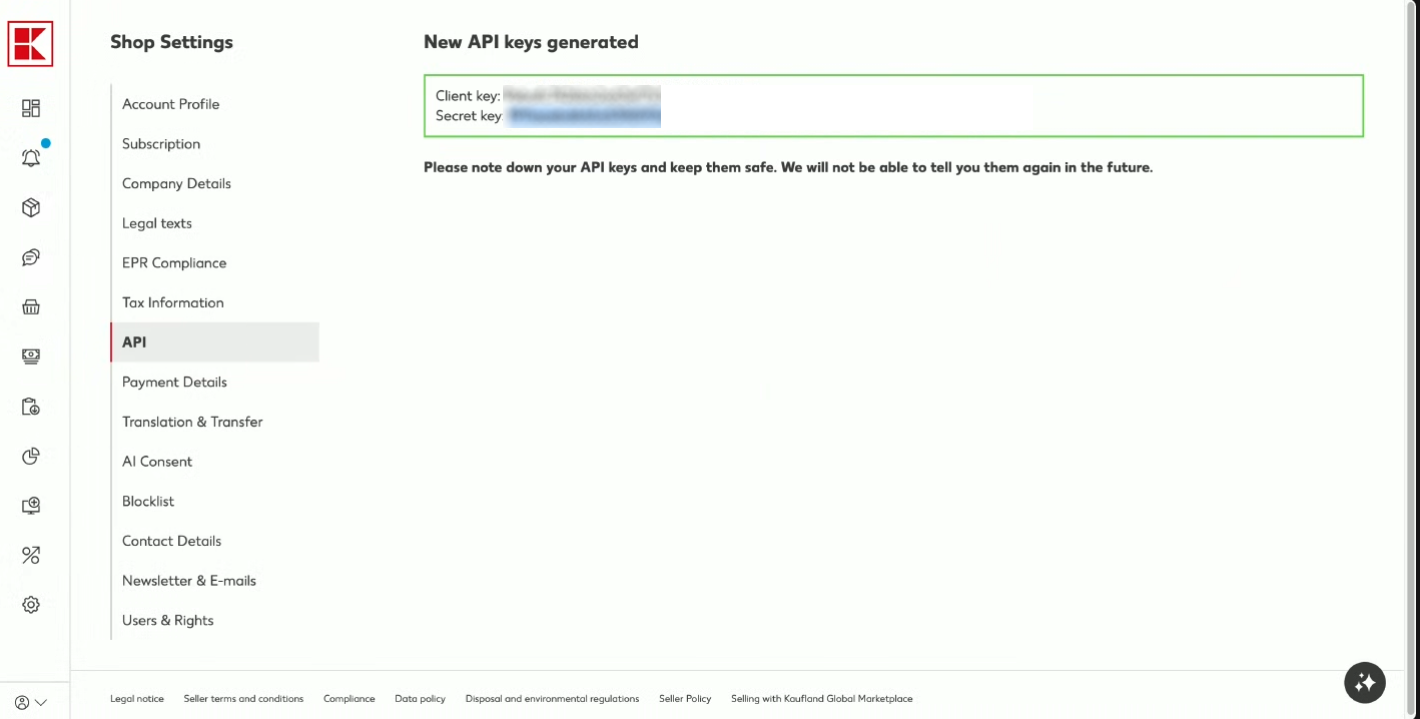
you can find or create your kaufland API Key on the Kaufland Seller Portal
copy the client key and secret key from the kaufland seller portal
Enter the required fields:
- Name (the name of this connection)
- Client ID (the Kaufland client ID)
- Secret (the Kaufland API secret)
The optional settings can specify how you want to set up the connection
- Prefix (This value will be prefixed to the order number)
- Tags (These tags will be attached to the Shopify orders)
- Enable Fulfillment by Kaufland (Be enabling this option, fulfilled FBK orders will also be imported to Shopify as fulfilled orders)
Click ‘Save’ when you’re done.
The app will now establish the connection with your Kaufland account.
Was this article helpful?
Thanks for your feedback!